Controllers, mouse & keyboard
SDL3 gamepad support, wired DualSense and Switch Pro HD Rumble haptics, Joy-Con 2 mouse mapping, and default keyboard bindings.
- Gamepads: SDL3
- Haptics: DualSense & Switch Pro USB
- Mouse: Joy-Con 2 native
- Config: controls.ini
SDL3 gamepads & HD Rumble
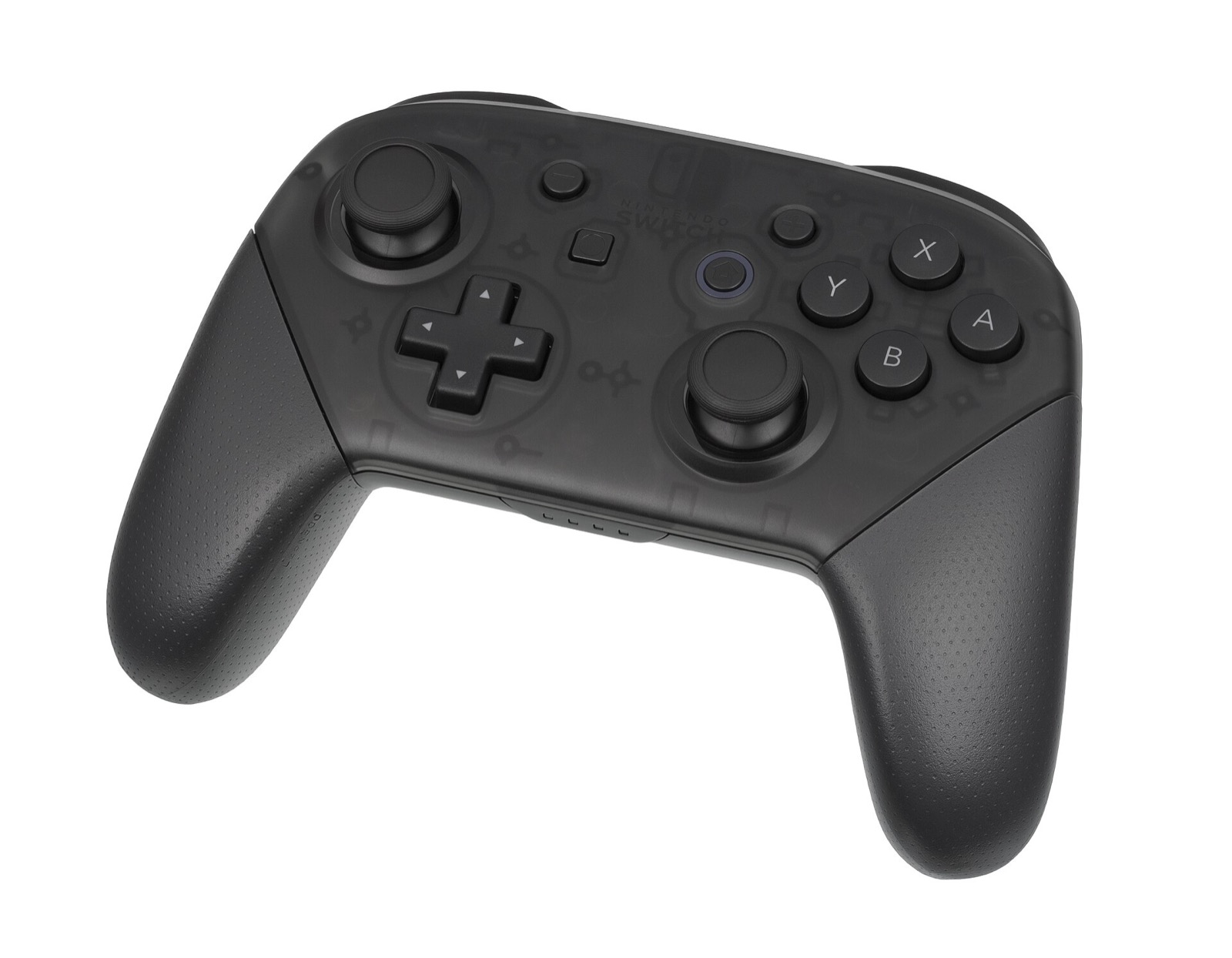
FEFW Recomp supports any controller through SDL3 alongside full keyboard and mouse input with zero setup. In-game button prompts automatically follow whichever device you touched last (Kenney CC0 input prompts):
- Wired DualSense & Switch Pro HD Rumble (#95): added in v0.1.7 using
RenHDrum(by trzz1214). Connect a Sony DualSense or Nintendo Switch Pro Controller over a USB cable to receive native HD Rumble waveforms through the haptic motors. Configure intensity under F1 > Controls > Haptics. - Bluetooth battle lag fix (#26): v0.1.7 rate-limits vibration updates during battle animations so Bluetooth controllers no longer accumulate input delay.
- Face-button layout: switch between Nintendo (B/A) and Xbox/PlayStation confirm layouts in the launcher’s Settings or F1 > Controls.
Controllers for FEFW Recomp
FEFW Recomp uses SDL3 for native gamepad input, dynamic button prompts, face-button layout switching, and wired DualSense / Switch Pro HD Rumble haptics (via RenHDrum in v0.1.7). These controllers pair cleanly on Windows 10/11 and Linux:
| Controller | Best For in FEFW Recomp | Hardware Advantage | Link |
|---|---|---|---|
| Sony DualSense | Wired HD Rumble haptics (v0.1.7) | Supported by F1 > Controls > Haptics (RenHDrum) over USB + crisp D-pad | View on Amazon |
| GameSir Cyclone 2 | Fast tactical grid cursor & bases | TMR sticks, Hall/microswitch triggers, 1000 Hz wireless dongle | View on Amazon |
| 8BitDo Ultimate 2 Wireless | Desktop Windows & SteamOS dock | TMR drift-free sticks, 2.4 GHz charging dock, Switch/XInput toggle | View on Amazon |
| Xbox Wireless Controller | Plug-and-play Windows 10/11 | Native XInput prompts & throttled Bluetooth battle vibration (#26) | View on Amazon |
As an Amazon Associate, this site earns from qualifying purchases.
Joy-Con 2 mouse controls
Fire Emblem: Fortune's Weave includes built-in mouse controls designed for the Switch 2’s Joy-Con 2 mouse sensor, and FEFW Recomp drives them directly from your PC mouse (restored for both battle maps and menus in v0.1.6, #40):
- Bases & dungeons: move the mouse to turn the camera, Left click to talk/open/attack, Right click to cancel or open the menu, and scroll the Mouse wheel while standing still to zoom. Walk with WASD or the left stick.
- Battle maps: move the mouse to glide the tactical grid cursor (keeping full speed even if frame rate dips below target, #40), Left click to select and confirm, Right click to cancel.
- Menus: move up/down to change selection, Left click to confirm, Right click to go back.
While mouse mode is active, the Windows cursor is hidden and locked to the window; press any keyboard key, touch a controller, or press Alt+Tab / F1 to free it. Adjust sensitivity under F1 > Controls > Mouse (stored as [mouse] jc2_speed in controls.ini) and inside the game’s own System > Settings rows marked (Mouse). Leave angle calibration untouched.
Keyboard & controls.ini
Every keyboard binding below works out of the box (#16):
| PC Keys | Switch 2 Button | In-Game Function |
|---|---|---|
| W A S D | Left stick | Move character / unit cursor |
| Arrow keys or I J K L | Right stick | Rotate camera |
| Enter, Space | A button | Confirm / select |
| Esc, Backspace | B button | Cancel / back |
| R | X button | Secondary action / details |
| F | Y button | Hold on battle maps to move cursor faster |
| Q / E | L / R bumpers | E: dash while exploring town |
| Z / C | ZL / ZR triggers | C: toggle map in town |
| Tab / M | + / − buttons | Open main menu (Tab) / system (M) |
| 1 2 3 4 or Numpad 8 2 4 6 | D-pad Up, Down, Left, Right | Directional pad navigation |
| V / B | Left / Right stick click | L3 / R3 press |
| F1 / F2 / Alt+Enter | Runtime shortcuts | In-game settings (F1), FPS counter (F2), Fullscreen (Alt+Enter) |
To customize bindings, close the game and edit [bindings.all] inside controls.ini in your run folder (created on first launch, with automatic backup at controls.ini.bak):
[bindings.all]
W = move_forward
Return = btn_a
G = btn_x
X = none
Common questions
How do I reset my keyboard bindings to default?
Close the game, open controls.ini in the run folder, and delete the [bindings.*] sections. FEFW Recomp regenerates the defaults on the next start.
Why do Steam Deck LCD controls stop responding after exiting the game once (#125)?
Issue #125 notes that binding F1 or exiting via the Steam overlay on Steam Deck LCD can leave the controller profile stuck on relaunch; verify that Mouse mode in F1 > Controls > Mouse is set to Automatic or Off when playing handheld, or restart the Steam client if input locks.
How do I move the battle map cursor faster on a controller or keyboard?
Hold Y on a controller or F on the keyboard while moving the left stick or WASD keys on battle maps.